See It In Action · For organizers, on event day
Day-Of Check-In
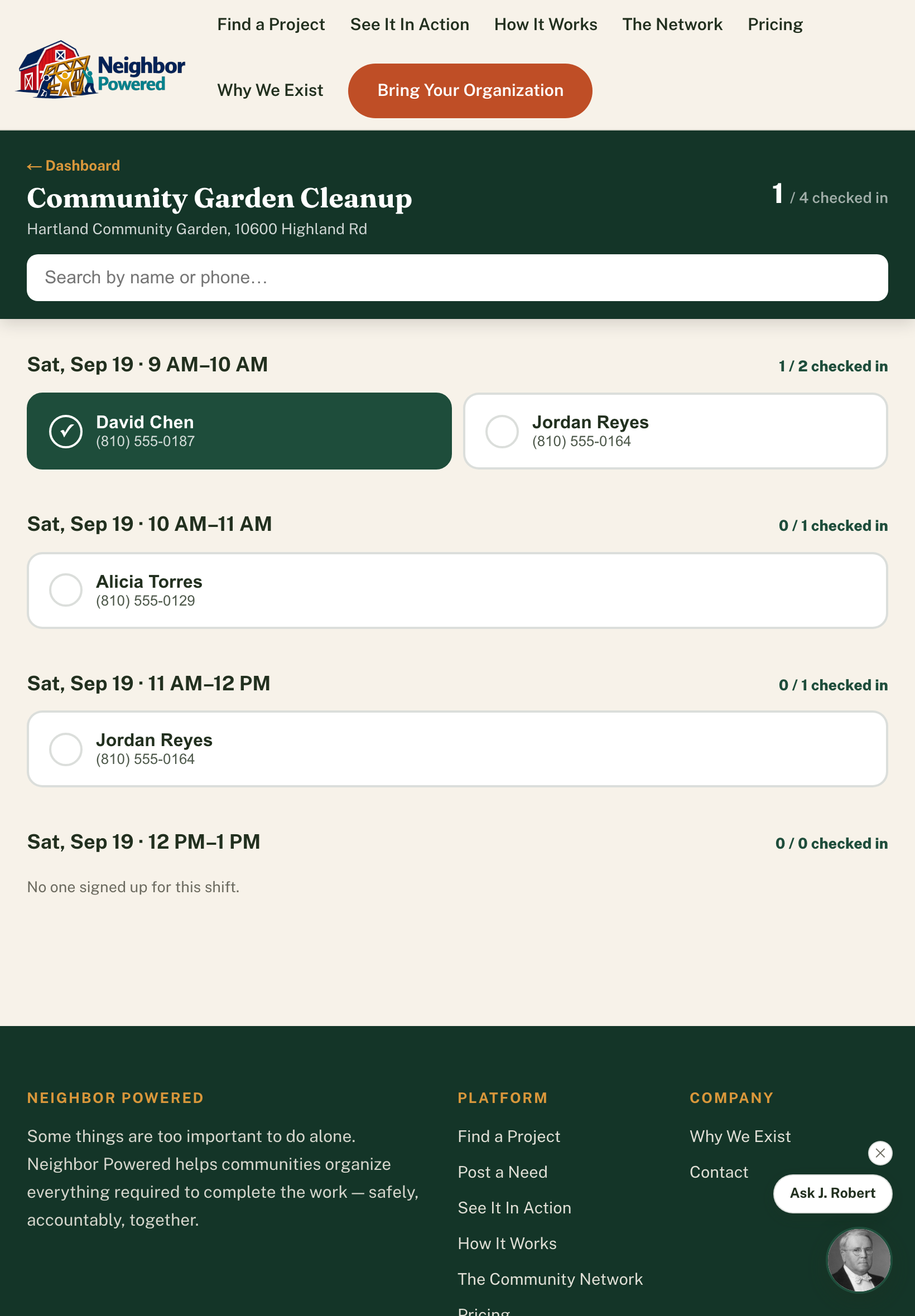
A staffed check-in station view for the day itself — big tap targets, grouped by shift, live counts.
How it works
The flow, step by step.
Open Check-In from the dashboard
Every opportunity gets a one-tap link into a dedicated event-day view, built for a phone or tablet at a table — not a desk.
Tap a name as people arrive
Volunteers are grouped by their exact shift, largest tap targets on the page, with each volunteer's phone number shown for a quick verbal confirmation.
Watch the count update live
A running "X of Y checked in" total sits at the top of the screen and per shift, plus a search box to find one volunteer fast in a long list.
Why it matters
The same tap that checks a volunteer in also fires their automatic thank-you email — so the person running the table isn't doing double duty as both greeter and data-entry clerk, and no volunteer's arrival goes unrecorded because someone forgot to update a paper sign-in sheet later.